Less searching.
More listening.
By Kid Bunka. Use this supplement alongside the core illustrated guide.
Watch the two-minute update film → · YouTube Short → · Instagram Reel →
1. Update without losing your work
Back up your music folder. Choose Program Update for your existing installation, not First Install. Follow START-HERE-1.2.0 inside the ZIP. The updater retains the data directory and customised presets. Miyoo recognises canonical TrackWerk folders and older PocketTrackerExtreme folders in place. Complete the metadata step so menu and VERSION labels match the new binary. Eject safely before starting the device.
On Android, install the signed APK over the existing TrackWerk app. Do not uninstall or clear storage. The install and update APK contain identical signed bytes: package com.kidbunka.trackwerk, versionCode 102000. Folder-access grants still depend on Android.
2. Find and preview a sound
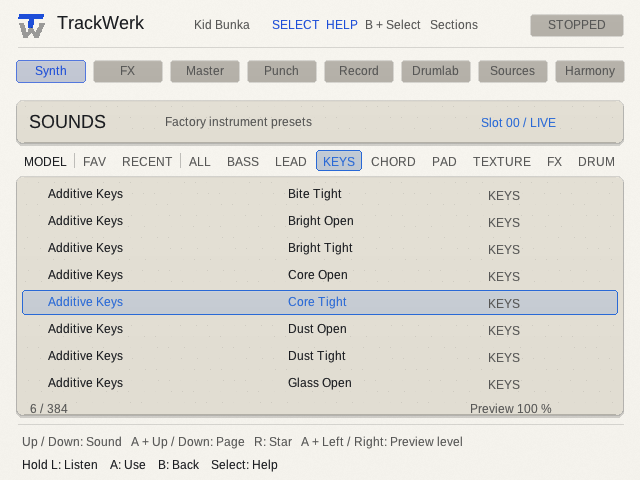
Open Studio and its Sound browser. Select one of twelve categories, browse the list, and preview before committing. The on-screen hint bar and SELECT help explain the current controls. Hold L for sound preview where offered; R stars the selected preset. Recent and Favourites keep useful choices nearby. A replacement confirmation protects an occupied instrument.
3. Choose a source, then a useful passage
In Studio → Sources, select a provider, then a genre, collection or station. A selects; B goes back. Follow the current hint bar for preview and markers. Supported MP3 files can preview progressively while downloading; unavailable audio cannot be marked as though it were downloaded. Use the existing IN/OUT workflow, render the selected range, and audition it in the Sample Editor before using it in a song.
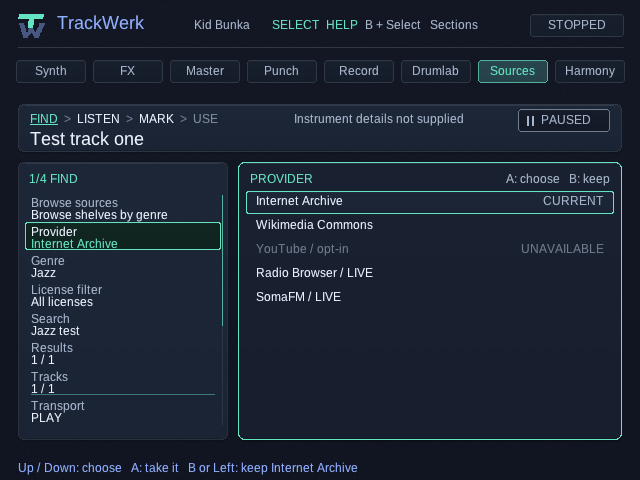
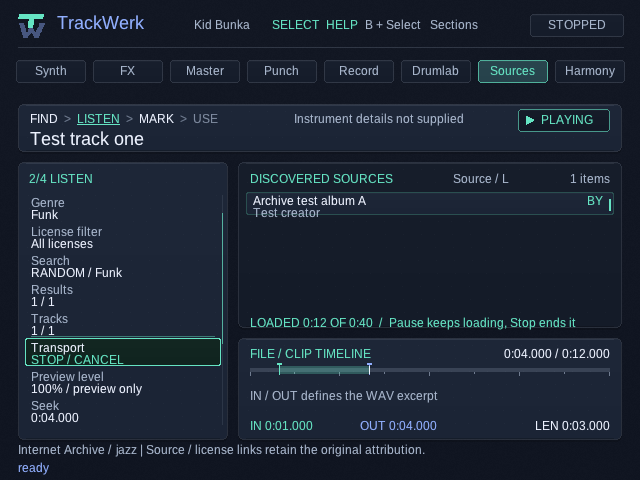
These images are real native test renders; the loading example uses a controlled fixture. Archive/radio access is not permission to redistribute recordings. Keep source and licence information with a sample.
4. Keep a live performance
Hold A on a Punch effect and release it to return. Internal resampling records the mix to a sample, so a performed transition can become a new instrument. The update film demonstrates an actual 13-second stereo take. Use SELECT for the current recording controls; internal resampling and an external USB input are separate paths.
5. First Beat and help
Open the interactive First Beat introduction from the in-app tutorial/help entry. SELECT opens context help. A long function-button hold opens its relevant help, and releasing that long hold does not also trigger the short action. Help is designed to preserve playback.
6. Native Linux desktop
Choose the .deb matching your system: amd64 for x86-64, arm64 for ARM64. These packages target Debian 13 with SDL 2.32.4 or newer. Install with your package manager so dependencies are installed. Run TrackWerk from the application menu or type trackwerk. This is a Linux application; it is not a Windows executable.
Use trackwerk --print-data-dir to find your user folder. Existing legacy data is used without a rename; package updates and removal do not delete user music. Factory presets are added only when missing. Keyboard: arrows navigate, K/Enter = A, J/Escape = B, Space = Start, Left Shift = SELECT, U/I = shoulders. Controls can be remapped.
What was checked
The exact 1.2 application source passed 88 host checks. All four handheld binaries passed their profile-specific ARM guest checks; these do not replace a physical device test. The signed Android APK passed an isolated Android 1.1→1.2 upgrade, first-frame and generated-data preservation test. Packages and four generated Miyoo layout/update fixtures passed checksum and data-retention checks.
Both Linux packages passed archive readback and 11 launcher tests. The predecessor application code was exercised in an ARM64 Debian VM with a real desktop and virtual audio sink. The final 1.2 packages have not yet repeated all desktop UI acceptance tests, and x86-64 execution is not confirmed. Save/Open/Export through the full desktop UI and physical USB/iPhone recording remain separate acceptance items.
Device limits
Normal Miyoo Mini is offline. Miyoo Mini Plus needs working Wi-Fi and the correct date/time for HTTPS. RGB20S has no built-in Wi-Fi; an external supported adapter is required. USB input/output depends on the device, operating system, class-compliant interface and available power. A direct iPhone connection is not promised as working.