Mutable Dreams by Kid Bunka

M-VAVE FM-1 Version 2.0

Mutable
Dreams 2.0

Play a sound world, let it evolve, then arrange and record what you hear. Six tracks of synthesis, rhythm and granular processing on the FM-1.

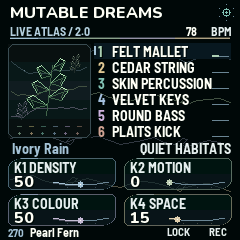
Pearl Fern running on the FM-1 display, with six voices and four performance macros
Pearl Fern Live Atlas
272
factory Biomes including Blank
632
tone presets
6
assignable tracks
8
USB audio inputs to your DAW

Interactive walkthrough

From a Biome to a piece

Pick a step to see the screen and follow along on the FM-1 or in the browser.

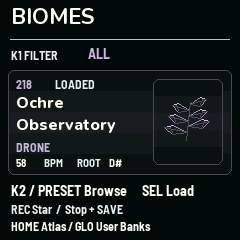
Biome Browser with family and preset controls
HOME · Biome Browser

Find a place to start.

A Biome holds the sounds, patterns, effects and modulation for the whole instrument.

  1. Press HOME until Biomes appears. K1 filters by family or Favorites.
  2. Turn K2 or PRESET to browse. Press SEL to load, then PLAY.
  3. Try the four Live Atlas macros. Use REC in the browser view on the FM-1 to mark a favorite, then stop and SAVE to keep it.
Open the browser instrument →
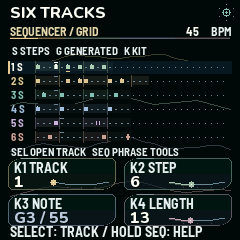
Six-track Sequencer Grid with individual pattern lengths
SEQ · Six-track grid

Let two patterns cross.

Two tracks with different pattern lengths can fall in and out of sync as they play.

  1. Tap SEQ until Sequencer / Grid. Use K1 for track, K2 for step, K3 for note and K4 for length.
  2. Choose lengths of 12 and 16. From the grid, SEL opens the selected track. REC cycles recording modes on its sequence page.
  3. Continue to Phrase Tools for copy, transpose and expression, or to Step Rules. While playing there, press SEL to queue a one-bar fill.
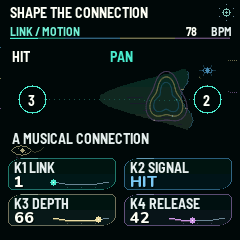
Living Links motion page with a hit assigned to pan
FX · Link Motion

Make the voices respond.

Use Living Links to let a hit move another voice. Biome Drift moves between two captured settings.

  1. On Living / Links, choose a source track, destination track and target. On Link / Motion, choose Hit and raise the depth from zero.
  2. To try Drift, set its mode to Off. In Drift / Scenes, capture A with K1, change a sound control, then capture B with K2. Try Manual first.
  3. For a simpler experiment, raise one track's grain send, open Granular Bus and turn Space up gently. LFO toggles grain freeze.

For hands-on control, MIDI Learn maps a knob or fader to a target. See page 5 of the PDF for a first mapping.

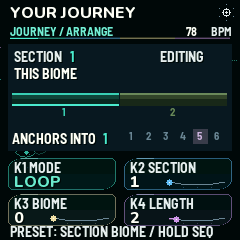
Pearl Fern's two-section factory Journey in Loop mode
SEQ · Journey Arrange

Give the piece a form.

Journey joins up to eight sections. An anchored voice can carry its sound and pattern across a transition.

  1. Start with Pearl Fern, Chapel of Fog or Copper Step and press PLAY to hear a factory loop.
  2. To make your own, stop and tap SEQ until Journey / Arrange. Set the mode with K1, section with K2, source with K3 and section count with K4.
  3. Tap SEQ for Timing, then Anchors. Set a duration and choose a track to carry. Save your version in a User Biome slot.

The other 269 factory Biomes, including Blank, start with Journey Off. Off retains the sections.

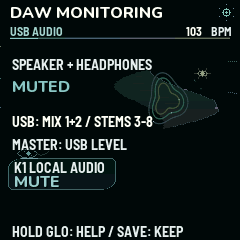
USB Audio page showing speaker and headphones muted with USB mix still active
GLO · USB Audio

Bring it into your DAW.

Connect the FM-1 by USB and choose it as your audio input at 44.1 kHz.

  1. Record the stereo mix on inputs 1–2. For separate voices, create six mono tracks on inputs 3–8.
  2. On the FM-1, tap GLO to reach USB Audio. Turn K1 left to mute the local speaker and headphones while USB stays active.
  3. Stop playback and use internal clock to save. From Home's Tracks or Biomes view, open User Banks with GLO. Name a free slot and press SAVE.
See the channel map and backup steps →

Three factory Journeys

Listen to the transitions.

Rendered from the 2.0 engine. Each clip includes a complete loop and its return.

Chapel of Fog

A low bass connects a vowel choir, cello and felt.

Pearl Fern

Felt and cedar give way to hand percussion over the same bass motif.

Copper Step

Kick and sub hold a dub groove as the upper voices change.

Sounds and screens from the FM-1

Hear it in motion.

Watch the display follow real playing, a granular freeze, Living Links and a Journey transition.

Watch the feature film on YouTube → Watch the Short →

Firmware & tools

Bring it to your FM-1.

Version 2.0 is available for the M-VAVE FM-1.

UC25HQ80 flash: Build 4442417D includes the updated flash checks. Installation, saving, a cold start and return to stock with this exact build on a UC25HQ80 unit are still awaiting confirmation.

Before an update, export your saved banks as .mddb and export an edited live Biome separately. Use desktop Chrome or Edge for the USB installer and editor.